
Add the POS
Switch on the yearly POS add-on when you are ready to sell at the counter. It needs a saved card. During your 15-day free trial, every POS screen in your dashboard is open, so you can set it all up first.
Settings, then Plan & billing
Home/Solutions/Burger and pizza
Burger and pizzaGetMenu is a pizza restaurant POS for pizza and burger shops. Each pizza takes its size, base, half-and-half toppings and extras to the kitchen. The pizza oven and the grill each get their own ticket, with the same order number. Counter, phone and online orders all come in this way, on iPad, iPhone or Android.
The GetMenu POS is made for a busy burger and pizza counter. The cashier taps a burger or a pizza, picks its choices, and takes cash or the card machine.
The POS will not add a dish until its required choices are picked, such as the size of a pizza or how a burger is cooked. The cash drawer opens when the customer pays cash. For a card, the cashier types the amount on your own card machine, then the POS records a card sale.
On a busy pizza night, the phone keeps ringing. The cashier types each phone order straight into the POS, for collection or delivery. Online orders land on the same screen, next to the counter sales.
Put the ten dishes that sold most in the last seven days on the Most sold tab. Every cashier has a four-digit PIN of their own, and each sale records who made it. A lost internet connection does not stop the counter. Sales wait on the device and go up once the line is back.
What the counter runs on
The size, the base and the toppings of a pizza are choices you add to the dish once. The customer picks them on your ordering page, or the cashier picks them on the POS, and they go with the order to the kitchen.
Make the size a group the customer must answer, and put a higher price on the bigger sizes. Let the toppings group allow up to a set number of picks, each with its own price, and add free choices such as no olives. For half and half, add one group for each half. A choice can add to the price but never take money off, so give the dish its lowest price and let each choice add to it.
A pizza cannot be added until every required choice is answered, and GetMenu checks the choices again when an online order is placed. The kitchen screen and the kitchen ticket show each pizza with its choices under it.
OVEN
The grill gets its own ticket, with the same order number.
Every choice on a burger reaches the people who cook it. How it is cooked, the cheese and an extra patty show on the kitchen screen and on the kitchen ticket. For an online order, they are in your managers' WhatsApp ticket too.
Give each dish a station, such as the grill, the fryer or the pizza oven. The POS prints one ticket for each station, with the same order number on every ticket and no prices. Counter, phone and online orders all get the same kitchen ticket, and a request such as no pickles is printed in bold on it.
With the POS add-on, a tablet in the kitchen becomes the kitchen screen. It shows orders from the counter, the phone, the tables and your ordering page. Each order changes colour as it waits: green when it arrives, amber as it gets close to its time, and red when it is late. A note that mentions an allergy stands out in red. The cook taps each dish when it is done.
Customers order from your own page, at an address such as yourshop.getmenu.ae, and need no app to use it. At checkout, they choose delivery or collection. A collection order needs no address and carries no delivery fee.
Offers show while the customer orders. When a customer opens a burger, GetMenu can offer the burger meal you set up. When a customer adds a pizza to the cart, GetMenu can offer a second pizza free, or at a price you set. Any offer can run only on the days and hours you choose. A bundle, such as any three pizzas for one price, applies by itself in the cart.
Customers pay cash or by card machine at the door, so you take no online payments. The page sells from the same menu, prices and stock as your counter, with no commission on its orders. GetMenu checks every price and offer again when the order is placed. Offers show on your ordering page, not at the counter. Offers and bundles come with some plans.
When a customer orders delivery on your page, your riders' WhatsApp group gets the order the moment it is placed. The ticket shows the building, the unit number, the customer's phone, and whether to collect cash or bring the card machine, with the amount.
At checkout, the customer picks their building from your list and types the unit number. If they share their location, the ticket carries a map link. Each building has its own delivery fee, and you can set free delivery above an amount you choose.
The cashier picks the rider for each delivery on the POS, and the ticket goes to your riders' group. A phone delivery gets the same ticket, with the building from your list. At the door, the rider taps one link to mark the pizza delivered, with no app.
A collection order goes to the kitchen but not to your riders, and the ticket says collection. Your managers' group gets each online order in full, with every topping, and the customer gets a confirmation from your own WhatsApp number.
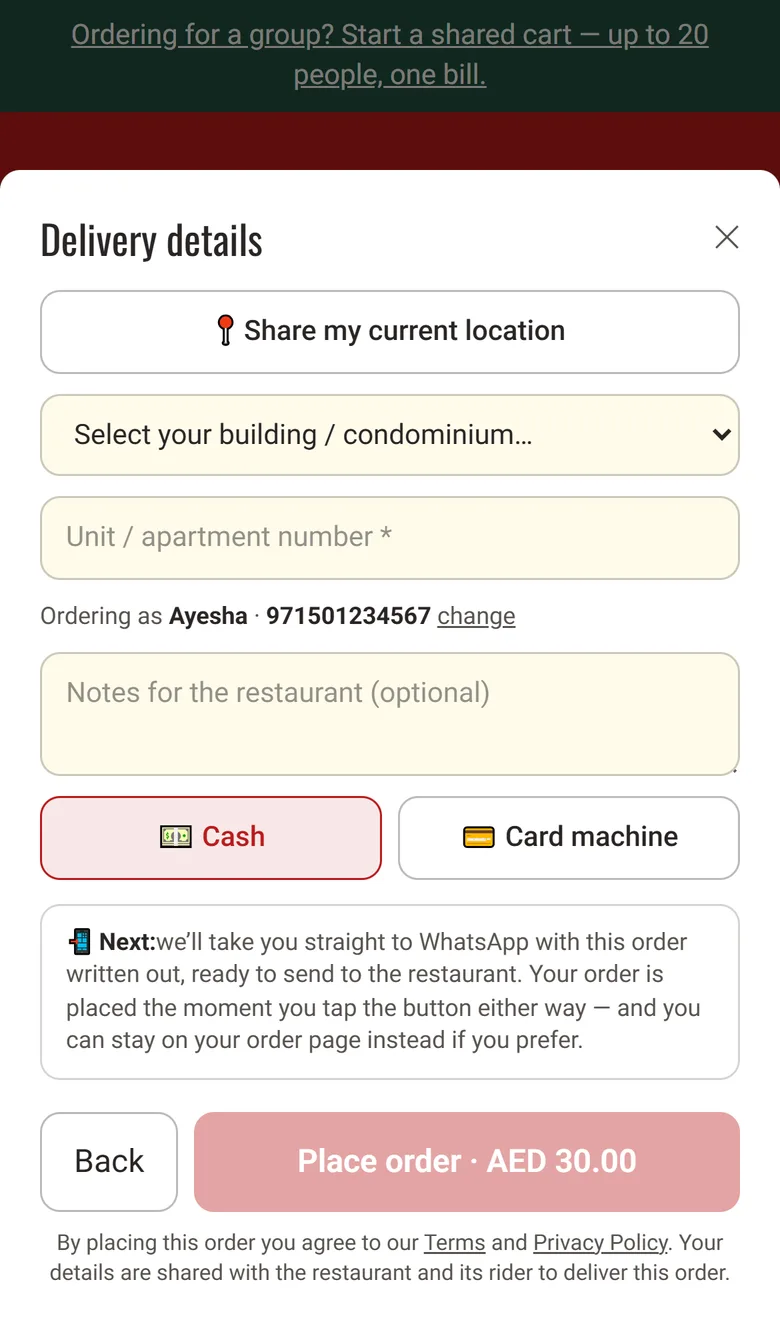
One customer can start a group order on your page and share the link. Friends or colleagues then add their own pizzas and burgers under their own names, and the person who started it pays one bill.
A group can have 2 to 50 people. The usual size is 20, and you can change it. The shared cart stays open for 24 hours, and you can change that too. The order goes to the building and unit of the person who started it, who pays in cash or by card machine at the door. When it is placed, everyone in the group gets a WhatsApp message with who ordered what, so they can pay each other back. Coupons do not apply to group orders.
Customers can also book an order for later. They pick a day and a 30-minute slot, the order waits on the Scheduled tab of your orders board, and your riders get the ticket when it is time to cook. Check the pricing page to see which plans include group orders and orders for later.
Stock is counted for each dish and each choice, so a stuffed crust or a soft bun can run out by itself. Every sale takes from the same count, whether it is made at the counter, on the phone, at a table or online. When the count reaches zero, nobody can order the dish.
A choice that has run out is crossed out when the customer opens the dish on your ordering page, and the dish stays on sale with its other choices. GetMenu counts again when an order is placed, so the last stuffed crust can only go to one customer. When a counter sale uses up a dish, the online menu shows it as sold out.
Customers see "Only 2 left" when few remain. Set an alert level, and your managers' group gets one WhatsApp message when an online order takes a dish below it. If an order is cancelled, the buns and crusts it used go back into stock. Every plan comes with stock control.
After a delivered order, GetMenu sends the customer a WhatsApp reminder to order again. It goes at the hour that customer usually orders, so someone who has pizza for dinner hears from you around dinner time, not at breakfast. It waits at least 20 hours after a delivery, and you can change the wait. The reminder is in every plan.
Some customers order pizza on the same night every week. A customer who has ordered on the same day of the week three times in eight weeks can get a message on that day, at the hour you pick. It goes at most once a week, and it stays off until you switch it on.
A stamp card can give one stamp for every pizza, with a free pizza as the reward. Customers keep the card in Apple Wallet or Google Wallet, and it updates itself when a stamp is added. Your plan decides whether the usual-day message, the stamp card and the wallet card are included.
Switch on the yearly POS add-on when you are ready to sell at the counter. It needs a saved card. During your 15-day free trial, every POS screen in your dashboard is open, so you can set it all up first.
Settings, then Plan & billing
Open each pizza and add its groups: the size as a group the customer must pick, the base, and the toppings with a limit and a price on each. Do the same for burger extras.
Menu, then the dish, then Choices and extras
Add a station for the grill and one for the pizza oven, then set on each dish which station cooks it.
Settings, then Printing & receipts
Add your counter device as a selling POS and a kitchen tablet as a kitchen screen. Type each six-character code into the app, and give every cashier a four-digit PIN.
Settings, then The POS
Add each building or area with its own delivery fee. Set a minimum order and free delivery under Ordering rules.
Settings, then Condominiums & delivery fees
Save the name and phone number of each rider. The cashier then chooses who takes each delivery, right on the POS.
Settings, then Riders & dispatch groups
Scan the QR code from your shop's WhatsApp phone, then pick your managers' group and your riders' group.
Settings, then WhatsApp connection & groups
Good pizza restaurant software asks for the size and the base before a pizza can be added, gets every topping to the kitchen clearly, and keeps one stock count for every order. With GetMenu, a half-and-half pizza prints on the oven ticket with both halves under it, and the burgers go to the grill on a ticket of their own. Orders from your own ordering page carry no commission.
Yes, if you set it up as choices on the dish. Add one group for each half, each listing the pizzas a half can be, and make both groups ones the customer must answer. Give a half that costs more its own extra price, because a choice can add to the price but never take money off. The kitchen screen and the kitchen ticket show both halves under the pizza.
Yes. Add a station for the grill and one for the oven, then set on each dish which station cooks it. The POS prints one ticket for each station, with the same order number on both and no prices. Counter, phone and online orders all get these tickets, and a request such as no onions is printed in bold. The kitchen screen shows every order too.
Yes. Phone orders and online orders show on the same POS screen as counter sales, so the cashier works from one list, and the kitchen gets the same ticket for each. If a customer at the counter is still deciding, the cashier can hold the sale and serve the next person. When the rush grows, pair a second POS on the same yearly add-on.
Yes. One person starts a group order on your page and shares the link. Each friend opens it on their own phone and adds their own food under their own name. The person who started it checks out once, gives the building and unit, and pays the whole bill at the door. Everyone then gets a WhatsApp message with who ordered what. Your plan decides whether group orders are included.
Yes. Create a Buy X get Y offer: when a customer has the pizza you pick in the cart, the cart offers a second pizza free or at a price you set. Limit the offer to the days and hours you want, such as Tuesday from 18:00 to 22:00. GetMenu checks the offer price again when the order is placed. The offer shows on your ordering page, not at the counter. The pricing page lists the plans with offers.
Yes, once you switch on orders for later. At checkout the customer picks a day and a 30-minute slot. The order waits on the Scheduled tab of your orders board, and your riders get the ticket when it is time to cook, not when it was booked. You choose how much notice you need, how many days ahead customers can book, and how long they can cancel.
Start a 15-day free trial with no card. Build your menu with its sizes and toppings, open your ordering page, and set up every POS screen before you pay. Selling at the counter needs the yearly POS add-on.