
Managers' group
NEW ORDER A-142
2 × Chicken burger (No onions, Extra cheese) · 1 × Fries (Large) · Note: "Please add extra napkins" · cash
Home/Features/Special requests
Kitchen ordering systemGetMenu is a kitchen ordering system that turns special requests into menu choices. Customers online and cashiers at the POS tap "No onions" or "Extra spicy" under the dish, and required choices cannot be skipped. Some systems call these choices modifiers. Every choice prints in bold on the kitchen ticket and shows under its dish on the kitchen screen.
A special request is easy to lose when it is only a chat message or a spoken word. A customer writes "no onions, please" in a WhatsApp chat or says it at the counter. Then someone has to carry it to the kitchen, by memory or on a piece of paper.
On a busy evening, that is where it goes wrong. The person taking orders types the order again for the cook and misses one line. A paper note slides under the next ticket. The cook makes the burger the usual way, and it goes out with onions.
The customer opens the bag and the order is wrong. Someone has to say sorry, and the dish is made again or refunded. For a customer with an allergy, a forgotten request is more serious than a wrong order. A customer who feels ignored may not order again, and may say so in a review.
A group you mark Must pick has to be answered before the dish can be added. Nobody can skip it, so the kitchen never gets a burger without its size or a wrap without its sauce.
On your ordering page, a required group has a star beside its name. A group that allows more than one pick says how many, for example "up to 3". The Add button stays off until every required choice is made, and a short line under it says "Choose the required options first". A choice that has run out is crossed out and cannot be picked.
At the counter, the POS lists the missing groups in red just above the Add button. A waiter's phone does the same with the words "Still to answer". Then GetMenu checks every choice again when the order arrives, whether it comes from your ordering page, the counter or a table. If a required choice is missing or too many were picked, the order is not placed, and the person ordering is told which dish to fix.
For an online order, GetMenu sends the full ticket to your managers' WhatsApp group the moment the order is placed. Each dish is on its own line with its choices in brackets, such as "2 × Chicken burger (No onions, Extra cheese)".
Nobody types the order again, so nobody can miss a line. The customer's note sits on its own line under the dishes. Everyone in the group reads the same ticket. You can add the cook to the group too.
Your riders' group gets its own ticket for a delivery order. It shows the building, the unit number and the map link, and under them the same dishes with the same choices. The rider can check the bag against the order before leaving. A wrong size is found at your counter, not at the customer's door. These WhatsApp tickets come with every plan. With the POS add-on, a phone order typed in at the counter goes to the riders the same way, choices included.
How every order reaches your managers and riders on WhatsApp
NEW ORDER A-142
2 × Chicken burger (No onions, Extra cheese) · 1 × Fries (Large) · Note: "Please add extra napkins" · cash
DELIVERY A-142
Palm Court, unit 1204 · map link · customer's phone · collect cash · 2 × Chicken burger (No onions, Extra cheese) · 1 × Fries (Large)
Both tickets go the moment the order is placed
With the POS add-on, an iPad, an Android tablet or a phone can become your kitchen screen. Counter sales, table orders and online orders all appear on it. So do phone and WhatsApp orders that your cashier types in. Each dish shows its choices on a line right under it.
The dish name stands out. Its choices sit on the line under it in orange, so the cook sees "No onions" right under the burger. When a customer's note mentions an allergy, it shows in a red box above the dishes, where the cook looks first.
The cook taps each dish when it is done, so a half-finished order is easy to spot. If your kitchen has stations, such as a grill and a drinks counter, a screen can show only the dishes its station cooks. A kitchen screen like this is also called a KDS. Online orders also show on the POS screen at the counter, next to the counter sales.
How the POS and your ordering page share one screen and one ticket
Some kitchens prefer paper. The GetMenu POS prints a kitchen ticket for every order, from the counter, a table, your ordering page or a WhatsApp chat. Each station gets a ticket with only the dishes it cooks.
Every ticket shows the same order number in large print. When two stations cook one order, staff can match the tickets easily. The ticket says whether the order is for delivery, collection or a table. There are no prices on a kitchen ticket, because a cook does not need them.
Each dish has its own line, and special requests are printed in bold on the kitchen ticket, right under the dish. "No onions" or "Extra spicy" is hard to miss on a busy evening. The customer's note prints on the ticket too, and a note that mentions an allergy prints in bold red above the dishes. You can print from an iPad, an iPhone or an Android device. The POS works with USB (on the LAN), network, Bluetooth and built-in printers.
HOT KITCHEN
The drinks station gets its own ticket with the same order number.
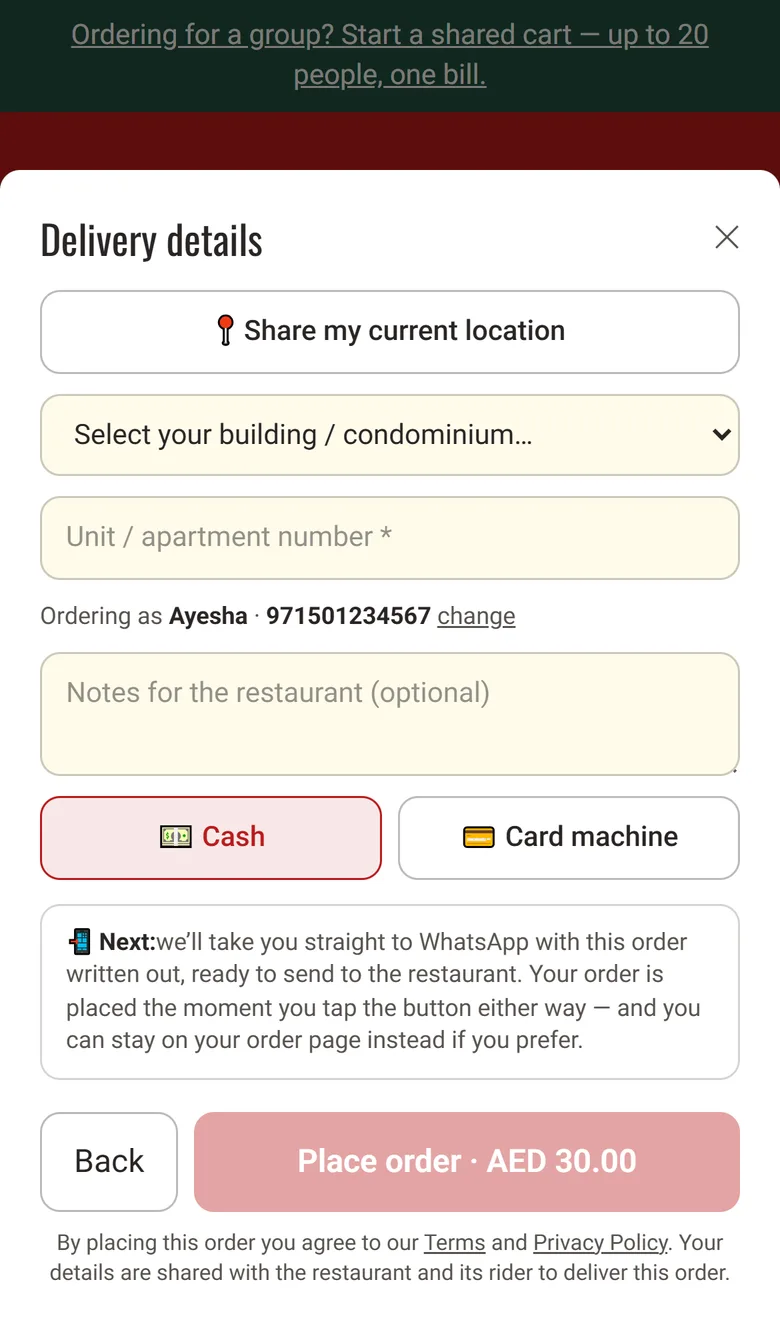
Customers can also write a note for the whole order. At checkout there is a box called Notes for the restaurant, for anything your choices do not cover, such as "please add extra napkins" or "a candle for a birthday".
The note goes to your managers' WhatsApp group, on its own line under the dishes. It also prints on the kitchen ticket. It is one note for the order, not one for each dish. When a note mentions an allergy, the kitchen sees it at once. It prints in bold red above the dishes on the kitchen ticket and shows in a red box above the dishes on the kitchen screen.
Read your notes for a week. If the same request keeps coming back, such as "no onions" or "well done", add it to the dish as a choice. Then customers tap it instead of typing it, and it prints in bold under the right dish.
Name each group, add its choices and give a choice an extra charge where it costs more. Or write the choices in the Options column of the Excel template.
Menu, then a dish, then Choices and extras
Tick Must pick on groups like a size or a sauce, and set Max picks to the number of choices allowed.
Menu, then a dish, then Choices and extras
Link your WhatsApp number by scanning a QR code, then pick the managers' group and the riders' group that get each ticket.
Settings, then WhatsApp connection & groups
With the POS add-on, add a device as a screen in the kitchen and enter its one-time code on the tablet or phone.
Settings, then The POS
Add a station for each part of the kitchen and give it its printer. Then open each dish on the Menu page and choose which station cooks it. Every ticket and screen then shows only its own dishes.
Settings, then Printing & receipts; then Menu, then a dish
Yes. You add the changes customers often ask for as choices on the dish, such as No onions, Extra spicy or Sauce on the side. The customer taps them when they open the dish. Each one stays with its dish on the kitchen ticket, the kitchen screen and the WhatsApp ticket. For anything else, the checkout has one note box for the whole order.
Open the dish on the Menu page and go to Choices and extras. Press + Add a group and name it Sauce. Tick Must pick, set Max picks to 1, then add the three sauces and leave their price empty. The customer must pick exactly one sauce before the dish can be added to the cart, and it costs nothing extra.
It can make it cost more. Each choice can add an extra charge, such as extra cheese or a large size, and the total in the cart includes it. A choice cannot take money off the price. For a small and a large portion, give the dish the price of the small one, and give the large choice an extra charge.
They cannot add the dish without it. The Add button stays off until every Must pick group is answered. GetMenu also checks the choices again when the order is placed. If one is missing, the order is not placed and the customer is told which choice to pick. This can happen when you make a group required after the customer has already added the dish.
On your managers' WhatsApp ticket, on its own line under the dishes, and on the kitchen ticket. A note that mentions an allergy stands out in red, on the ticket and on the kitchen screen. A request about one dish works best as a choice, because it then prints in bold right under that dish.
No. On every plan, your managers' WhatsApp group gets each online order with every dish and its choices. The POS, a yearly add-on, adds the kitchen screen and a printed kitchen ticket for every order, and lets cashiers and waiters pick the same choices at the counter and the tables. The pricing page shows the plans and the add-on in your own currency.
Yes. The ticket in your riders' WhatsApp group lists every dish with its choices in brackets, under the building, the unit number and the map link. The rider can check the bag against that list before leaving, so a missing extra or a wrong size is caught at your counter. The customer's free-text note goes to the managers' group, not to the riders.
Yes. A phone order, or an order a customer sends in a WhatsApp chat, is typed in once at the POS. The cashier taps the same choices your ordering page offers, so each request prints in bold on the kitchen ticket and shows on the kitchen screen. For a delivery, your riders' WhatsApp group gets the ticket the same way as an online order.
Try GetMenu free for 15 days, with no card needed. Add choices to your dishes, place a test order on your own page, and see how it reaches your managers' WhatsApp group.